

Google Translate
This page will be used to review versions of the Google Translate widget.
Steps to create a new Google Translate widget:
- Go to https://translate.google.com/manager/website/ and login with your Google account.
- Once logged in, click ‘Add To Website’.
- Enter the URL of the site you want to use the Google Translate plugin, and select the language of your site. Click ‘Next’.
- Select the languages you want to include in your Google Translate plugin (be sure to include english).
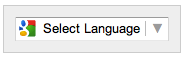
- Then select your display mode, inline, tabbed or automatic (see below for copies of each).
- Make appropriate selections under advanced.
**New feature – you can now have the use of the Google Translate widget tracked in your Google Analytics by clicking that box during the set up of the Google Translate widget and supplying the appropriate Google Analytics ID.
Here are examples of the various styles that Google offers for its Translate widget:
Vertical:
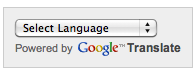
Horizontal:

Dropdown Only:
Styling the Google Translate Widget:
- The Google Translate widget can be styled to help make it work better with the site design. See styles in stylesheet for more specifics.
- It is a violation of the terms of service to remove, alter or hide the Google logo/branding.
- See Google Translate Widget at the top of this page for a working example of a custom-styled drop-down menu.
Accessibility Concerns:
The custom-styled Google Translate element has been test with the Siteimprove Chrome plugin, a manual test for keyboard accessibility and with a screen-reader (JAWS). Below are the concerns found.
- The Google Translate icon does not have an alt attribute. This code is being generated by the Google Javascript and cannot be altered.
- HTML is being used to format content. This has been reviewed by Siteimprove and has not been found to cause a barrier to accessibility.